> ## Documentation Index
> Fetch the complete documentation index at: https://docs.unifygtm.com/llms.txt
> Use this file to discover all available pages before exploring further.
# User management
> Invite users and set their roles directly in Unify.
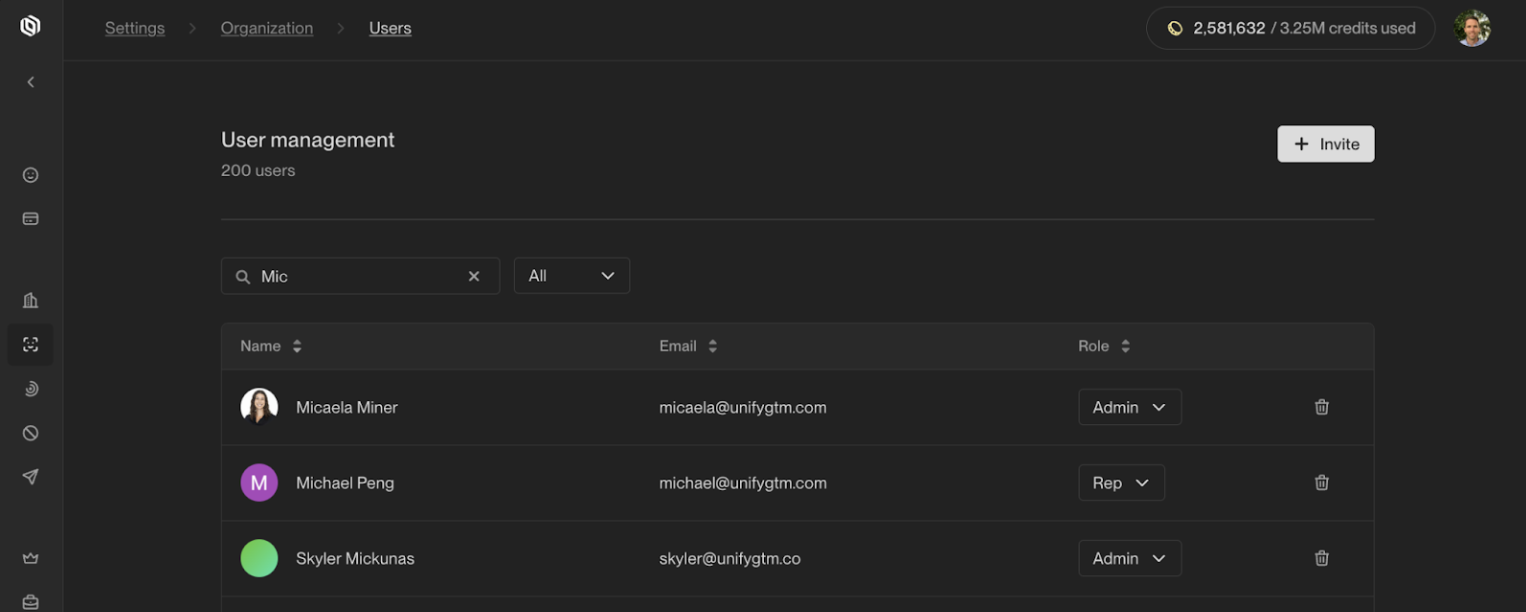
Your teammates can be assigned two different roles in Unify:
* **Admin** — Designed for users who need access to all core Unify capabilities and settings in the organization.
* **Rep** — Designed for users who are primarily focused on creating and managing Sequences in Unify, and who don’t need access to edit Plays or manage organization settings.
 ## Role detail
Each role has a granular set of permissions available to them:
| Permission | Admin | Rep |
| - | :-: | :-: |
| Invite users and set roles | ✅ | ❌ |
| Edit Organization settings, including Billing | ✅ | ❌ |
| Edit Exclusion settings | ✅ | ❌ |
| Create and edit Plays | ✅ | ❌ |
| View Plays | ✅ | ✅ |
| Create and edit Sequences | ✅ | ✅ |
| Create and edit Audiences | ✅ | ✅ |
| Viewable tasks on Tasks dashboard | *All tasks* | *Tasks assigned to me* |
| Edit settings to make task skippable | ✅ | ❌ |
## Inviting a new user
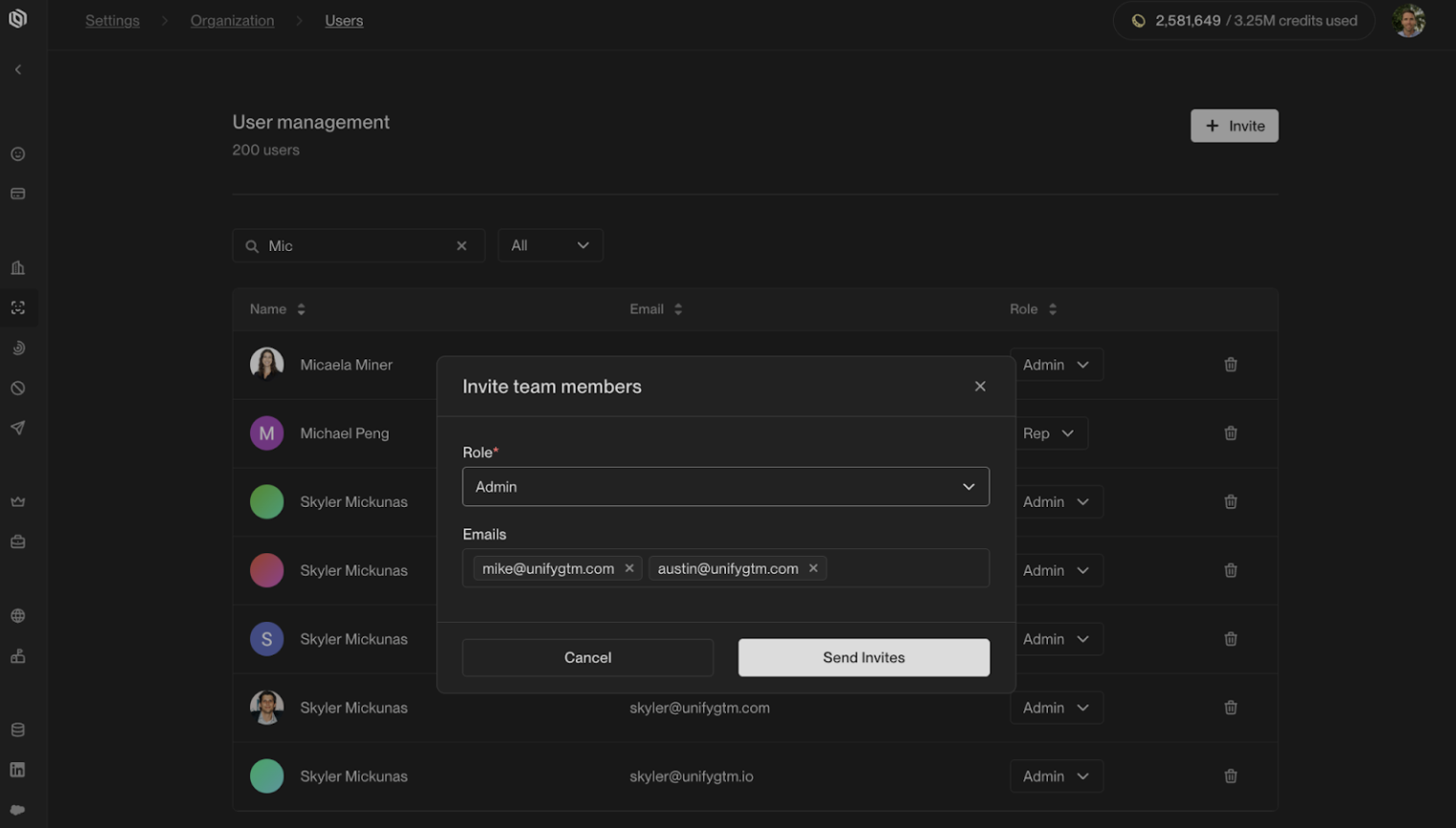
To invite a new user, click the **+ Invite** button, and set their role. You can invite multiple users at one time.
You can always change this role after they accept the invite.
## Role detail
Each role has a granular set of permissions available to them:
| Permission | Admin | Rep |
| - | :-: | :-: |
| Invite users and set roles | ✅ | ❌ |
| Edit Organization settings, including Billing | ✅ | ❌ |
| Edit Exclusion settings | ✅ | ❌ |
| Create and edit Plays | ✅ | ❌ |
| View Plays | ✅ | ✅ |
| Create and edit Sequences | ✅ | ✅ |
| Create and edit Audiences | ✅ | ✅ |
| Viewable tasks on Tasks dashboard | *All tasks* | *Tasks assigned to me* |
| Edit settings to make task skippable | ✅ | ❌ |
## Inviting a new user
To invite a new user, click the **+ Invite** button, and set their role. You can invite multiple users at one time.
You can always change this role after they accept the invite.
 This documentation is built and hosted on [Mintlify](https://mintlify.com), a developer documentation platform.