> ## Documentation Index
> Fetch the complete documentation index at: https://docs.unifygtm.com/llms.txt
> Use this file to discover all available pages before exploring further.
# Play actions
> Actions are the building blocks of Unify Plays.
export const ThemedImageFrame = ({lightSrc, darkSrc, alt, caption}) =>
;
## Overview
Plays chain together actions to perform anything from simple automations to
complex and dynamic outbound campaigns. Below are the actions you can choose
from when creating a Play.
## Core actions
### AI Agent qualification
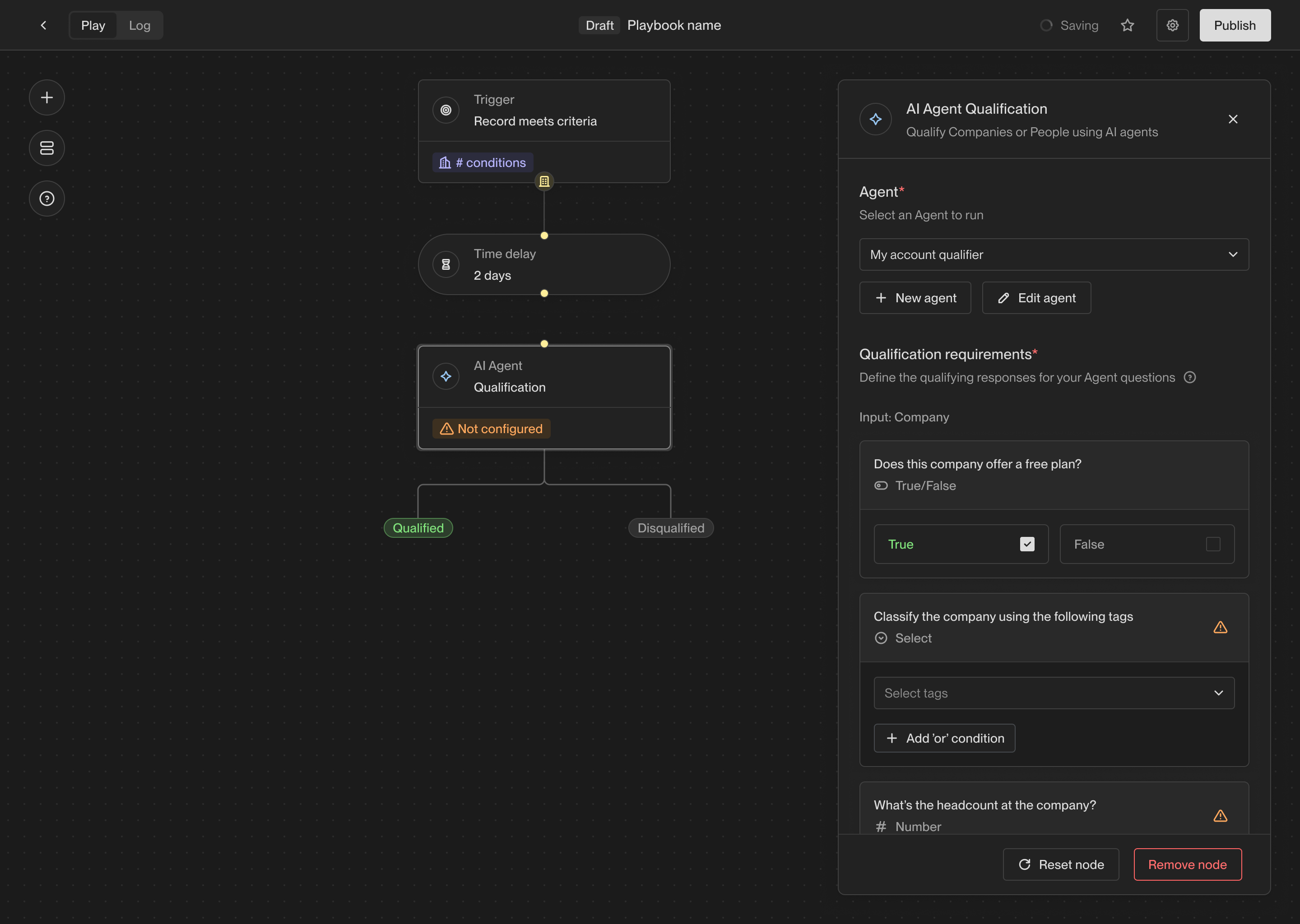
AI Agents are powerful tools for researching companies or people and answering
questions about them. In Plays, the answers provided by an Agent can be used to
determine whether a company or person is qualified or not.
When you select the Agent qualification action, you will be able to choose an
existing Agent or create a new one. Every Agent has a set of questions that it
will answer about the given record. In the action configuration panel, you can
select which answers are required for the record to be considered qualified.
 ### Assign owner
The owner assignment action allows you to assign a record to a specific owner in
Unify. Every company and person record in Unify has an owner, and this action
allows you to set or change the owner of a record.
### Assign owner
The owner assignment action allows you to assign a record to a specific owner in
Unify. Every company and person record in Unify has an owner, and this action
allows you to set or change the owner of a record.
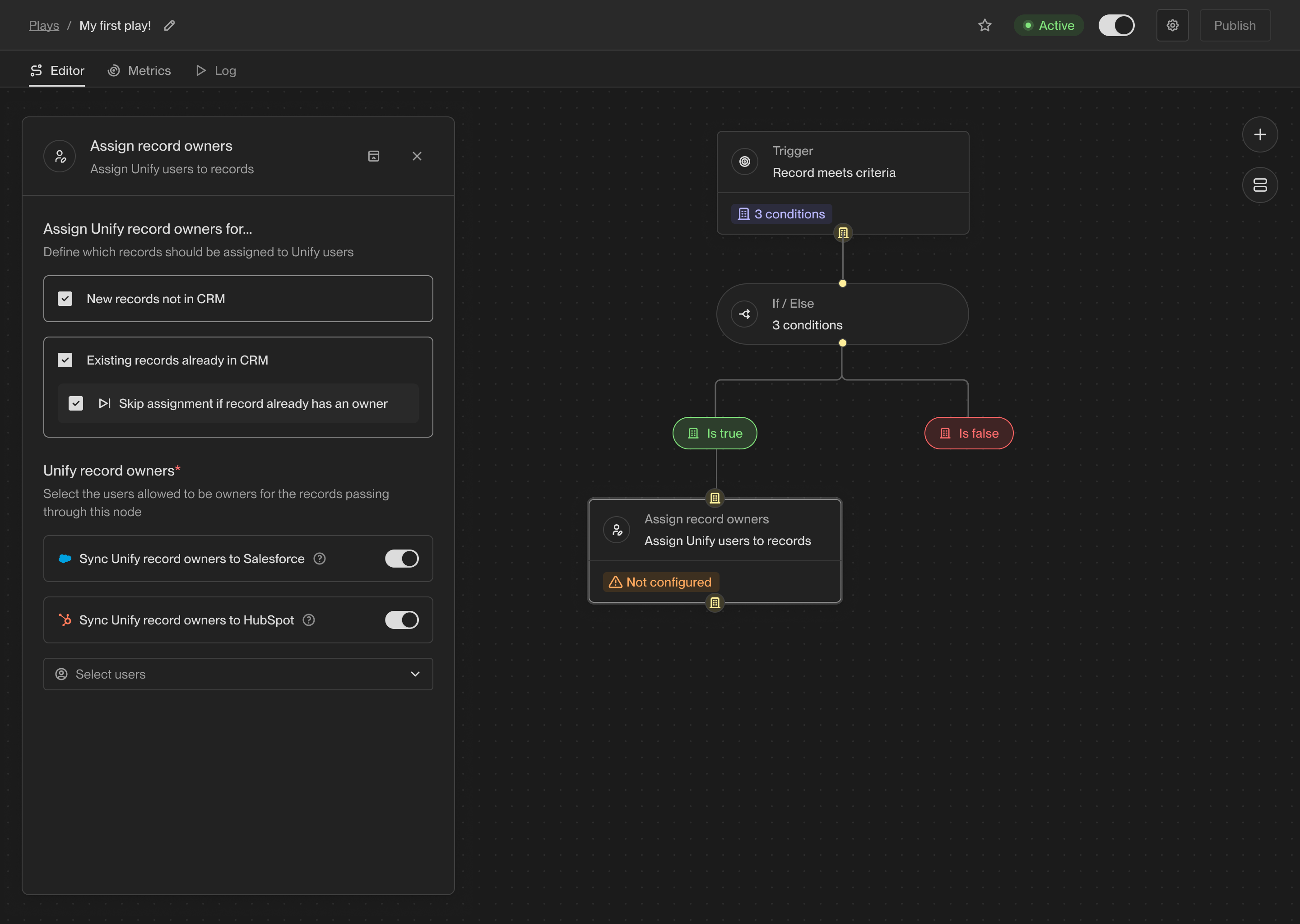 When you connect a CRM to Unify, the owner of the corresponding records in the
CRM will be synced into Unify. For records that don't yet have an owner or don't
yet exist in the CRM, you can use this action to assign an owner. You can also
choose to update the owner if desired.
### Prospect
One of the most common use cases for Plays is to find new people to reach out
to. The prospecting action takes a company record as input and returns a list of
people at that company matching specific personas and criteria.
When you select the prospecting action, you can specify one or more personas to
search for. The personas are considered in order, so the first persona will be
preferred over the second, then each subsequent persona.
When you connect a CRM to Unify, the owner of the corresponding records in the
CRM will be synced into Unify. For records that don't yet have an owner or don't
yet exist in the CRM, you can use this action to assign an owner. You can also
choose to update the owner if desired.
### Prospect
One of the most common use cases for Plays is to find new people to reach out
to. The prospecting action takes a company record as input and returns a list of
people at that company matching specific personas and criteria.
When you select the prospecting action, you can specify one or more personas to
search for. The personas are considered in order, so the first persona will be
preferred over the second, then each subsequent persona.
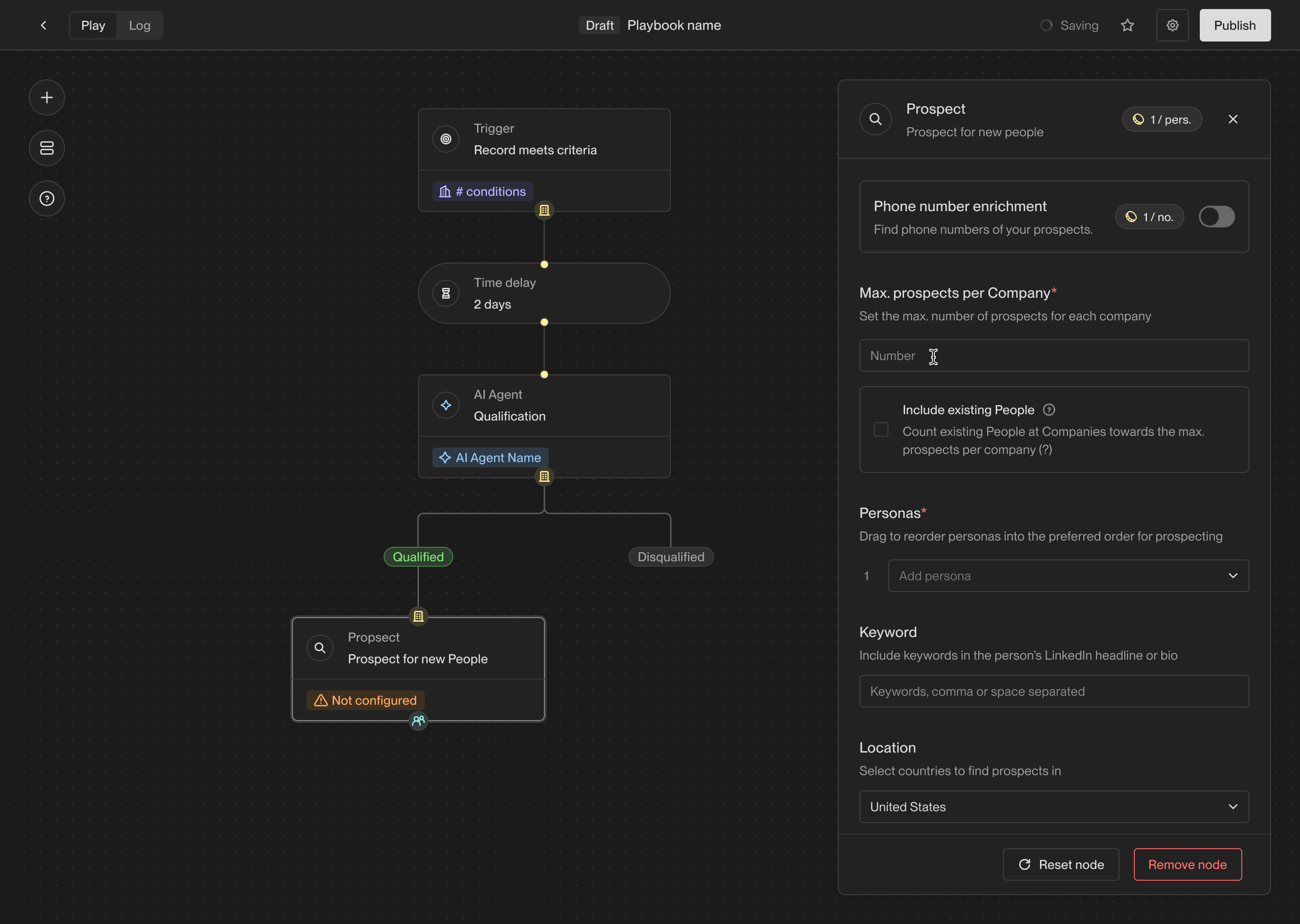 You can also specify a limit on the number of people to find per company. The
limit must be between 1 and 10.
#### Prospecting methods
The prospecting method determines whether Unify should use people that already
exist in Unify or your CRM, pull fresh contact data, or do both.
| Method | Behavior | Credit usage |
| - | - | - |
| **Prioritize existing records** | Adds matching existing people first, then uses Unify prospecting data to find additional people until the per-company limit is reached. | Credits are charged only for new people found from Unify prospecting. |
| **Find the best matches** | Uses Unify prospecting data for every person so Unify can return the freshest matching records. | Credits are charged for every person added, even if they already exist in Unify or your CRM. |
| **Find new people only** | Excludes existing people and only returns net-new people. | Credits are charged for every person added. |
Unify prospecting uses 2 credits per person. If credits are exhausted, the
action cannot find net-new people. If **Prioritize existing records** is
selected, the action can still return matching existing people.
#### Persona order and filters
Personas are matched in the order shown in the action. Drag personas to set the
preferred order. You can select up to five personas in one Prospect action.
Optional filters refine the search:
* **Phone enrichment** attempts to enrich phone numbers for returned people.
* **Keywords** search information associated with prospects and rank matching prospects higher.
* **Countries** only return people located in selected countries.
The Prospect action returns a list of people. To enroll those people in
sequences, connect the Prospect action to a **Sequence** action and configure
persona routing there.
### Sequence
The sequence action enrolls people in a published
[template sequence](/reference/sequences/create-a-sequence). Use it to turn a
play's qualification or prospecting results into scheduled outreach. Each route
selects a sequence and a sending mailbox for the people who reach the action.
Publish the sequence and connect a sending mailbox before configuring the
route. Review the sequence's [ruleset](/reference/sequences/rulesets) and
[send schedule](/reference/sequences/send-schedules) to set who can enroll and
when emails can send. For per-person content generated with AI, use the
[agentic enrollment flow](/reference/sequences/agentic-sequences).
#### Configure routing
Open the sequence action, then click **Add persona routing**. For a configured
action, click **Edit persona routing**.
Choose the mailbox routing method and the sequence for each route, then click
**Done**. To send everyone to one sequence, configure the **Everyone** route.
Add persona routes when different job functions need different messaging.
#### Persona routing
Unify compares the person's title with the configured personas in order. The
first match determines their route. Enable **Route all personas together** when
all listed personas should use the same sequence and mailboxes.
If an earlier prospecting action uses personas that are missing from the
routes, **Add prospect personas** adds them for you to configure.
The **Everyone else** route handles people who do not match a persona. Leave it
set to **No action** to skip those people.
#### Mailbox routing
Choose how Unify selects the sending mailbox:
| Routing option | Behavior |
| - | - |
| Manually select mailboxes | Select mailboxes or mailbox groups for each route. |
| Use person record owner | Use an eligible mailbox assigned to the person's Unify owner. |
| Use company record owner | Use an eligible mailbox assigned to the company's Unify owner. |
Owner-based routing also requires fallback mailboxes. Unify uses them when the
record has no owner or the owner has no eligible mailbox.
A mailbox must be assigned to an active user and unpaused.
Unify-managed mailboxes must also be warm. See
[mailbox operations](/reference/deliverability/mailbox-operations) if an expected
mailbox is unavailable.
The sequence's [task assignment settings](/reference/sequences/rulesets#task-assignment)
determine who receives tasks. For example, you can assign tasks from automatic
enrollments to the sending mailbox's owner or a specific teammate.
#### Enrollment limits and skips
Set **Max. enrollments per company** to limit simultaneous outreach at a
company. The count includes active enrollments throughout the workspace,
including those added manually or by other plays. When the limit is reached,
the action skips additional people at that company.
A person may also be skipped because:
* No route matches, or the route has no eligible mailbox.
* The selected sequence has no published version or has been deleted.
* Simultaneous enrollment or re-enrollment settings prevent enrollment.
* The person opted out, is marked do not email, or matches an applicable
exclusion or engagement restriction.
Check the action's result in the play logs to understand a skipped enrollment.
After enrollment, use the sequence's
[enrollment table](/reference/sequences/enrollments) to track progress and
[results](/reference/sequences/results) to evaluate outreach. Filter results by
the enrolling play to see its contribution. Emails wait for the sequence's send
schedule and the mailbox's available capacity.
### Slack alert
The Slack alert action allows you to send a customized Slack message at any
point in a Play. You can send messages to any public channels or DM any users in
your workspace.
You can also specify a limit on the number of people to find per company. The
limit must be between 1 and 10.
#### Prospecting methods
The prospecting method determines whether Unify should use people that already
exist in Unify or your CRM, pull fresh contact data, or do both.
| Method | Behavior | Credit usage |
| - | - | - |
| **Prioritize existing records** | Adds matching existing people first, then uses Unify prospecting data to find additional people until the per-company limit is reached. | Credits are charged only for new people found from Unify prospecting. |
| **Find the best matches** | Uses Unify prospecting data for every person so Unify can return the freshest matching records. | Credits are charged for every person added, even if they already exist in Unify or your CRM. |
| **Find new people only** | Excludes existing people and only returns net-new people. | Credits are charged for every person added. |
Unify prospecting uses 2 credits per person. If credits are exhausted, the
action cannot find net-new people. If **Prioritize existing records** is
selected, the action can still return matching existing people.
#### Persona order and filters
Personas are matched in the order shown in the action. Drag personas to set the
preferred order. You can select up to five personas in one Prospect action.
Optional filters refine the search:
* **Phone enrichment** attempts to enrich phone numbers for returned people.
* **Keywords** search information associated with prospects and rank matching prospects higher.
* **Countries** only return people located in selected countries.
The Prospect action returns a list of people. To enroll those people in
sequences, connect the Prospect action to a **Sequence** action and configure
persona routing there.
### Sequence
The sequence action enrolls people in a published
[template sequence](/reference/sequences/create-a-sequence). Use it to turn a
play's qualification or prospecting results into scheduled outreach. Each route
selects a sequence and a sending mailbox for the people who reach the action.
Publish the sequence and connect a sending mailbox before configuring the
route. Review the sequence's [ruleset](/reference/sequences/rulesets) and
[send schedule](/reference/sequences/send-schedules) to set who can enroll and
when emails can send. For per-person content generated with AI, use the
[agentic enrollment flow](/reference/sequences/agentic-sequences).
#### Configure routing
Open the sequence action, then click **Add persona routing**. For a configured
action, click **Edit persona routing**.
Choose the mailbox routing method and the sequence for each route, then click
**Done**. To send everyone to one sequence, configure the **Everyone** route.
Add persona routes when different job functions need different messaging.
#### Persona routing
Unify compares the person's title with the configured personas in order. The
first match determines their route. Enable **Route all personas together** when
all listed personas should use the same sequence and mailboxes.
If an earlier prospecting action uses personas that are missing from the
routes, **Add prospect personas** adds them for you to configure.
The **Everyone else** route handles people who do not match a persona. Leave it
set to **No action** to skip those people.
#### Mailbox routing
Choose how Unify selects the sending mailbox:
| Routing option | Behavior |
| - | - |
| Manually select mailboxes | Select mailboxes or mailbox groups for each route. |
| Use person record owner | Use an eligible mailbox assigned to the person's Unify owner. |
| Use company record owner | Use an eligible mailbox assigned to the company's Unify owner. |
Owner-based routing also requires fallback mailboxes. Unify uses them when the
record has no owner or the owner has no eligible mailbox.
A mailbox must be assigned to an active user and unpaused.
Unify-managed mailboxes must also be warm. See
[mailbox operations](/reference/deliverability/mailbox-operations) if an expected
mailbox is unavailable.
The sequence's [task assignment settings](/reference/sequences/rulesets#task-assignment)
determine who receives tasks. For example, you can assign tasks from automatic
enrollments to the sending mailbox's owner or a specific teammate.
#### Enrollment limits and skips
Set **Max. enrollments per company** to limit simultaneous outreach at a
company. The count includes active enrollments throughout the workspace,
including those added manually or by other plays. When the limit is reached,
the action skips additional people at that company.
A person may also be skipped because:
* No route matches, or the route has no eligible mailbox.
* The selected sequence has no published version or has been deleted.
* Simultaneous enrollment or re-enrollment settings prevent enrollment.
* The person opted out, is marked do not email, or matches an applicable
exclusion or engagement restriction.
Check the action's result in the play logs to understand a skipped enrollment.
After enrollment, use the sequence's
[enrollment table](/reference/sequences/enrollments) to track progress and
[results](/reference/sequences/results) to evaluate outreach. Filter results by
the enrolling play to see its contribution. Emails wait for the sequence's send
schedule and the mailbox's available capacity.
### Slack alert
The Slack alert action allows you to send a customized Slack message at any
point in a Play. You can send messages to any public channels or DM any users in
your workspace.
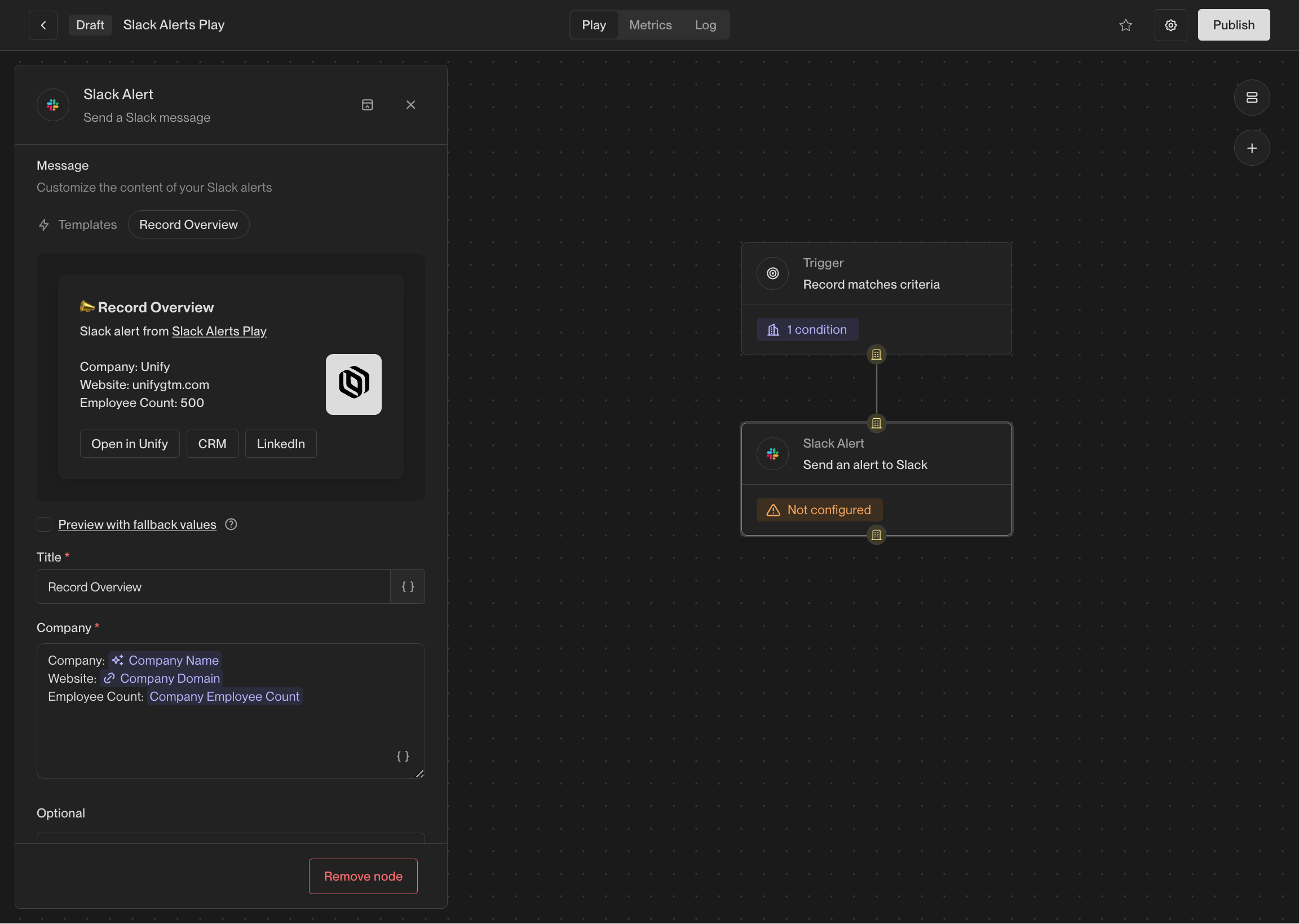 The contents of the messages can be customized with template variables, so you
can include information about the record that triggered the action.
If the value for a template variable is missing, the message will still be sent,
but the variable will be replaced with `Unknown`.
You may optionally tag the owner of the account (e.g. `@John Doe`), so they can
be easily notified of the alert. You can also include intent signal information
containing recent website visitors, G2 page views, and more.
This action is available when Slack connected to Unify. See the [Slack integration guide](/reference/integrations/slack)
for information on integrating Slack with Unify.
### Sync to HubSpot
This action creates or updates HubSpot records for the companies or people
reaching the node. It uses your workspace HubSpot connection and saved
[field mappings](/reference/integrations/hubspot/field-mappings).
Bidirectional syncs must be enabled.
The play determines when this action runs, independently of the integration's
automatic sync rules.
Open **Advanced** to set default field values for this action. These fill empty
CRM fields when a mapped Unify value is missing and take precedence over
[defaults in integration settings](/reference/integrations/hubspot/default-values).
For example, a description of “Qualified in Unify” can label records synced
by this play when no description is otherwise available.
Review the write and its connection in the integration's **Sync log**.
### Sync to Salesforce
This action creates or updates Salesforce records for the companies or people
reaching the node. It uses your workspace Salesforce connection and saved
[field mappings](/reference/integrations/salesforce/field-mappings).
Bidirectional syncs must be enabled.
The play determines when this action runs, independently of the integration's
automatic sync rules.
Open **Advanced** to set default field values for this action. These fill empty
CRM fields when a mapped Unify value is missing and take precedence over
[defaults in integration settings](/reference/integrations/salesforce/default-values).
For example, a description of “Qualified in Unify” can label records synced
by this play when no description is otherwise available.
Review the write and its connection in the integration's **Sync log**.
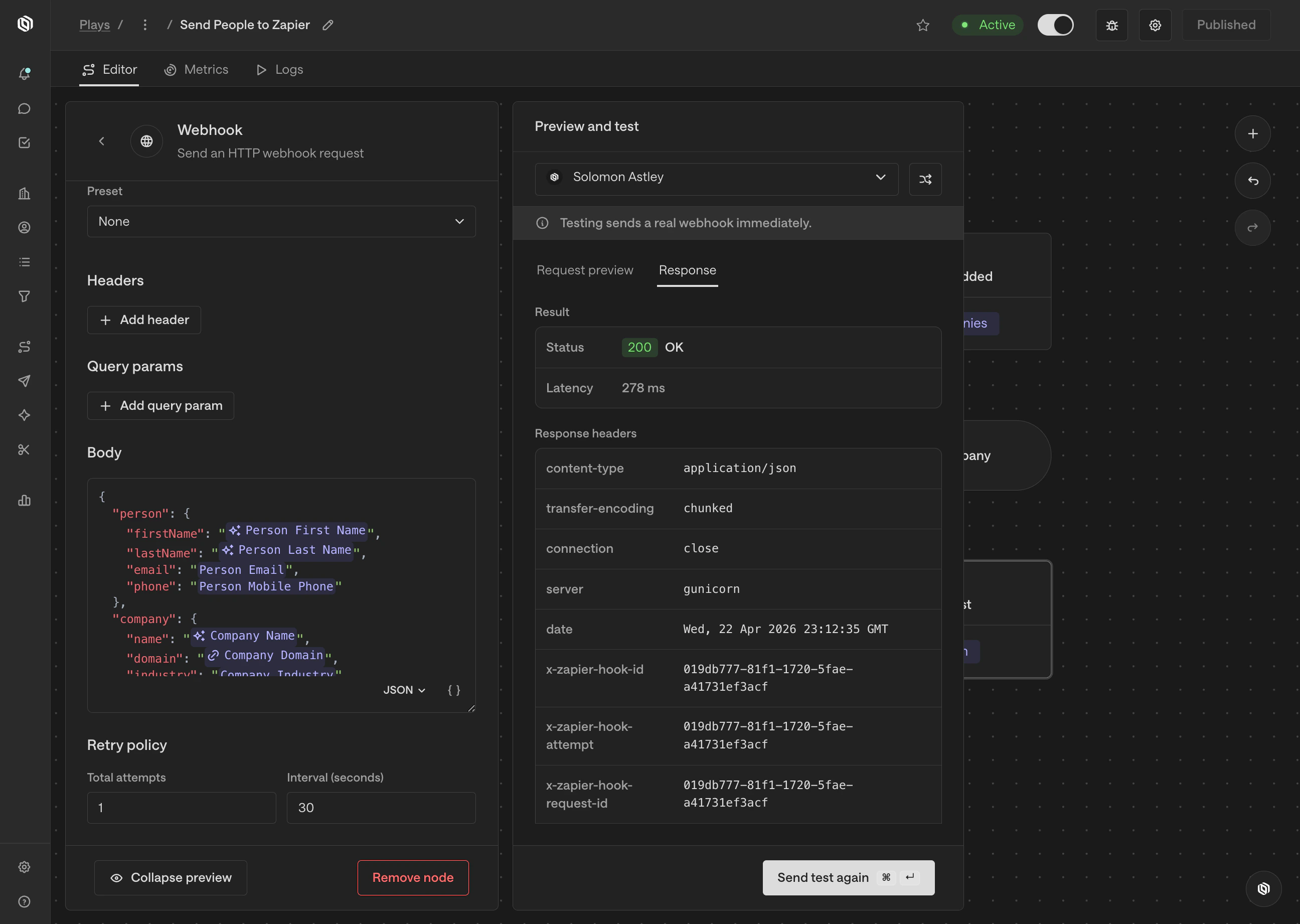
### Webhook
The webhook action allows you to send an HTTP request to any URL with
configurable options and a custom payload. This can be used to integrate with
any tool that accepts webhooks, such as Zapier, n8n, or internal tooling.
Here are the available configuration options:
| Option | Description |
| - | - |
| **URL** | The URL to send the request to. |
| **Method** | The HTTP method to use (e.g. GET, POST, etc.). |
| **Authentication** | The authentication method to use, if any (e.g. Basic Auth, Bearer Token, etc.). |
| **Headers** | Any custom headers to include in the request. |
| **Query params** | Any custom query parameters to include in the request URL. |
| **Body** | The body of the request, which can be customized with template variables. |
| **Retry policy** | The number of retries to attempt if the request fails and the time between retries. |
The contents of the messages can be customized with template variables, so you
can include information about the record that triggered the action.
If the value for a template variable is missing, the message will still be sent,
but the variable will be replaced with `Unknown`.
You may optionally tag the owner of the account (e.g. `@John Doe`), so they can
be easily notified of the alert. You can also include intent signal information
containing recent website visitors, G2 page views, and more.
This action is available when Slack connected to Unify. See the [Slack integration guide](/reference/integrations/slack)
for information on integrating Slack with Unify.
### Sync to HubSpot
This action creates or updates HubSpot records for the companies or people
reaching the node. It uses your workspace HubSpot connection and saved
[field mappings](/reference/integrations/hubspot/field-mappings).
Bidirectional syncs must be enabled.
The play determines when this action runs, independently of the integration's
automatic sync rules.
Open **Advanced** to set default field values for this action. These fill empty
CRM fields when a mapped Unify value is missing and take precedence over
[defaults in integration settings](/reference/integrations/hubspot/default-values).
For example, a description of “Qualified in Unify” can label records synced
by this play when no description is otherwise available.
Review the write and its connection in the integration's **Sync log**.
### Sync to Salesforce
This action creates or updates Salesforce records for the companies or people
reaching the node. It uses your workspace Salesforce connection and saved
[field mappings](/reference/integrations/salesforce/field-mappings).
Bidirectional syncs must be enabled.
The play determines when this action runs, independently of the integration's
automatic sync rules.
Open **Advanced** to set default field values for this action. These fill empty
CRM fields when a mapped Unify value is missing and take precedence over
[defaults in integration settings](/reference/integrations/salesforce/default-values).
For example, a description of “Qualified in Unify” can label records synced
by this play when no description is otherwise available.
Review the write and its connection in the integration's **Sync log**.
### Webhook
The webhook action allows you to send an HTTP request to any URL with
configurable options and a custom payload. This can be used to integrate with
any tool that accepts webhooks, such as Zapier, n8n, or internal tooling.
Here are the available configuration options:
| Option | Description |
| - | - |
| **URL** | The URL to send the request to. |
| **Method** | The HTTP method to use (e.g. GET, POST, etc.). |
| **Authentication** | The authentication method to use, if any (e.g. Basic Auth, Bearer Token, etc.). |
| **Headers** | Any custom headers to include in the request. |
| **Query params** | Any custom query parameters to include in the request URL. |
| **Body** | The body of the request, which can be customized with template variables. |
| **Retry policy** | The number of retries to attempt if the request fails and the time between retries. |
 ## Utility actions
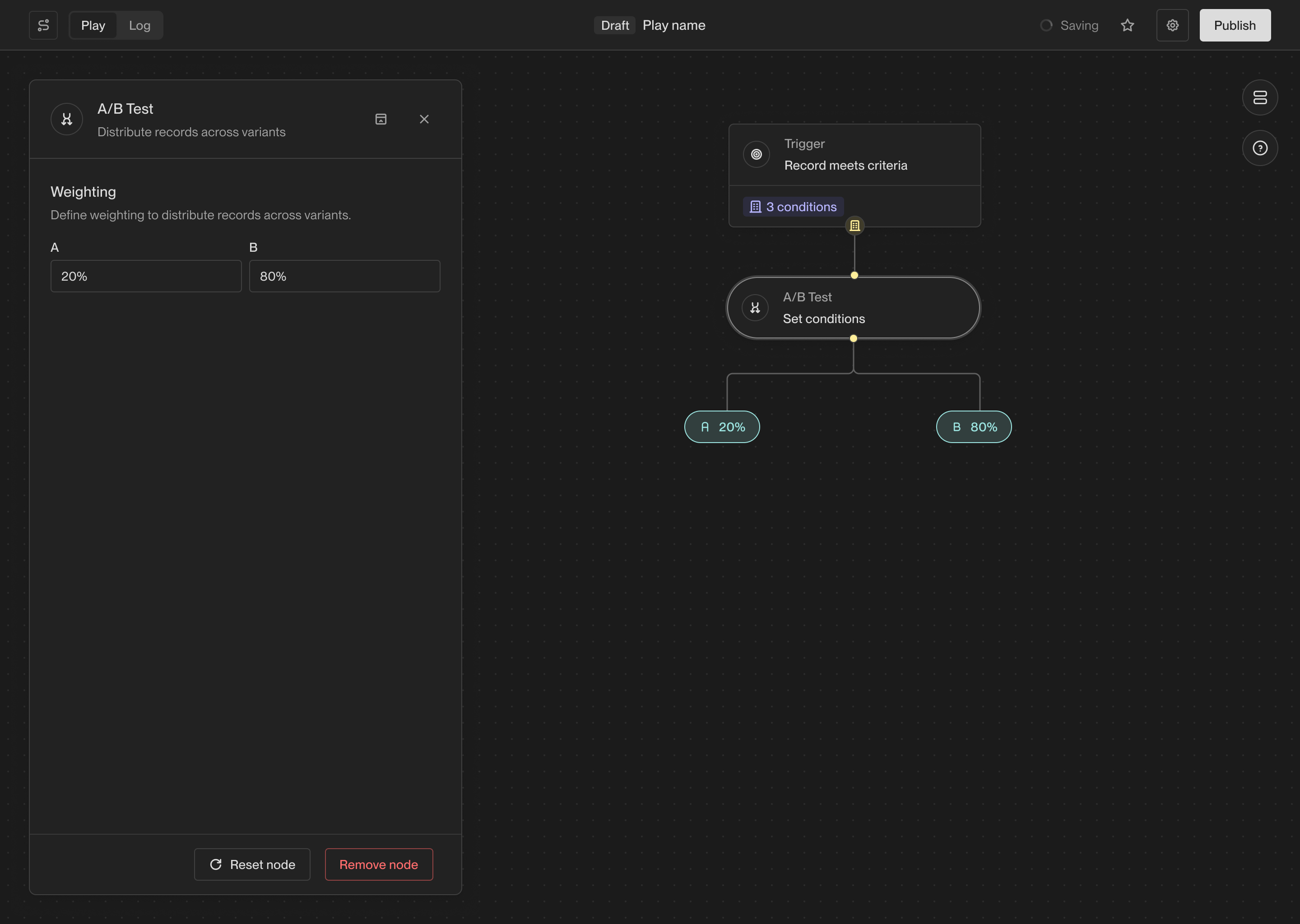
### A/B test
The A/B test action allows you to route records down a specific path based on a
set probability. This is useful for testing different sequences or actions.
## Utility actions
### A/B test
The A/B test action allows you to route records down a specific path based on a
set probability. This is useful for testing different sequences or actions.
 ### Delay
The Delay action waits for a specified amount of time before continuing to the
next action in a Play. This can be useful for spacing out actions in a Play and
ensuring that actions are performed at the right time.
### Delay
The Delay action waits for a specified amount of time before continuing to the
next action in a Play. This can be useful for spacing out actions in a Play and
ensuring that actions are performed at the right time.
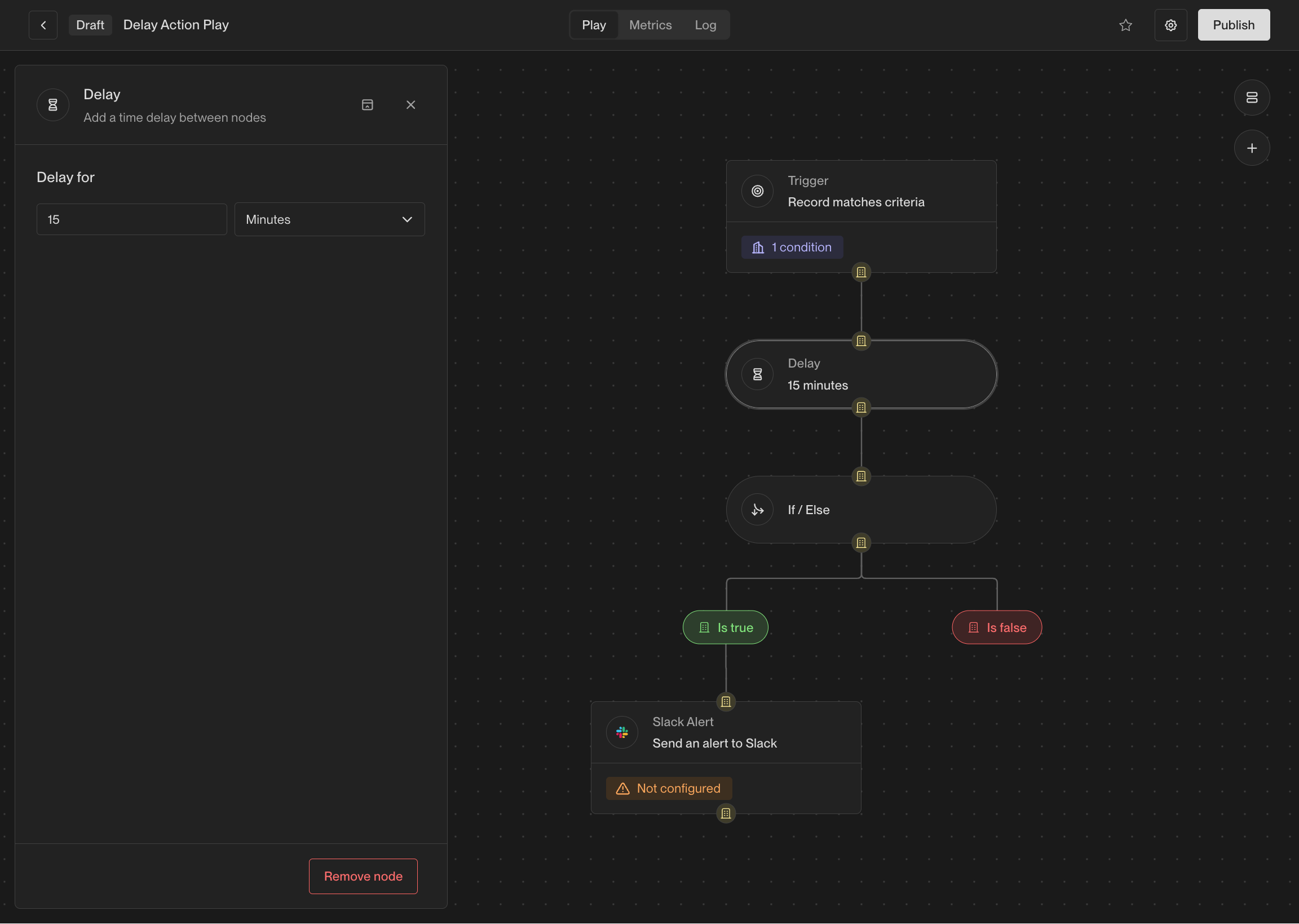 This action is particularly useful when combined with if-else actions. For
example, when a person visits your website, it can be useful to wait a few
minutes before taking action to see which pages they visit or whether they fill
out a form.
### Get Company
If you have a person record, you can use this action to fetch the company that
the person works at. If the person does not have a company associated with them,
this action will not return any result.
### Get People
If you have a company record, you can use this action to fetch people that work
at the company. Unlike the **Prospect for new People** action, this action only
looks for people that already exist in Unify rather than prospecting for new
people.
### If / Else
The if-else action creates a branch in a Play, evaluates some conditions for
records, and sends them down a specific path based on the result. This allows
you to perform different actions on different records based on criteria that you
specify.
This action is particularly useful when combined with if-else actions. For
example, when a person visits your website, it can be useful to wait a few
minutes before taking action to see which pages they visit or whether they fill
out a form.
### Get Company
If you have a person record, you can use this action to fetch the company that
the person works at. If the person does not have a company associated with them,
this action will not return any result.
### Get People
If you have a company record, you can use this action to fetch people that work
at the company. Unlike the **Prospect for new People** action, this action only
looks for people that already exist in Unify rather than prospecting for new
people.
### If / Else
The if-else action creates a branch in a Play, evaluates some conditions for
records, and sends them down a specific path based on the result. This allows
you to perform different actions on different records based on criteria that you
specify.
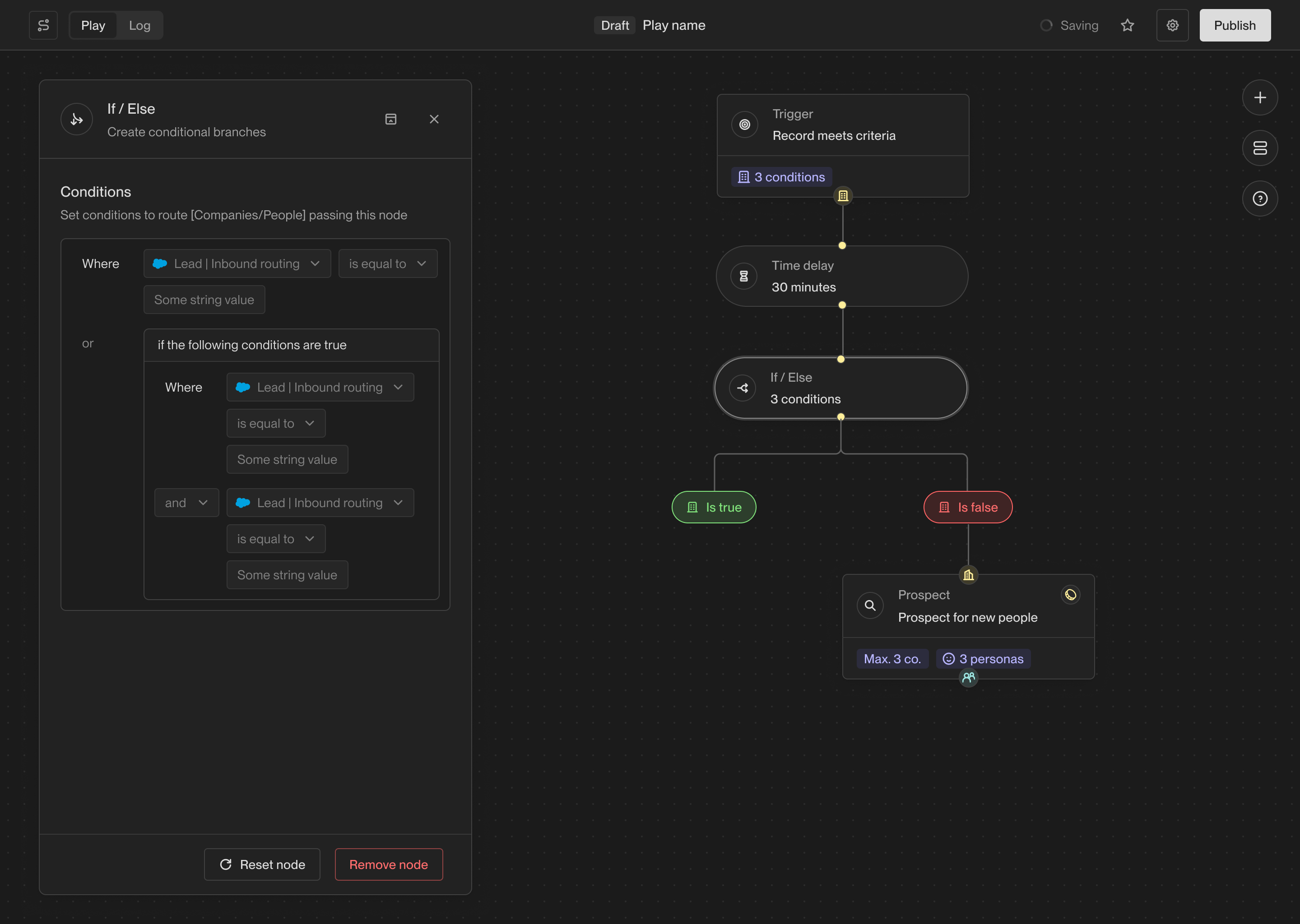 This action enables you to solve a wide variety of more complex use cases using
Plays. For example, you can enroll people into different sequences based on
their company firmographics, exact job title, or custom CRM field values.
## Coming soon
There are lots of additional actions in the works including more powerful AI
features and deep integrations with third-party tools. If you're interested in
an action that isn't available yet, [let us know](mailto:support@unifygtm.com)!
We'll get you in the beta as soon as it's ready.
This documentation is built and hosted on [Mintlify](https://mintlify.com), a developer documentation platform.
This action enables you to solve a wide variety of more complex use cases using
Plays. For example, you can enroll people into different sequences based on
their company firmographics, exact job title, or custom CRM field values.
## Coming soon
There are lots of additional actions in the works including more powerful AI
features and deep integrations with third-party tools. If you're interested in
an action that isn't available yet, [let us know](mailto:support@unifygtm.com)!
We'll get you in the beta as soon as it's ready.
This documentation is built and hosted on [Mintlify](https://mintlify.com), a developer documentation platform.